Controlling a phone camera with a remote
February 14, 2026
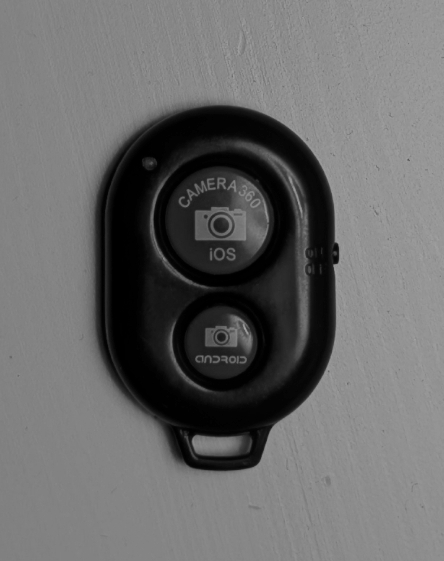
My grandpa asked me to help with a seemingly simple thing recently: he wanted to put his phone somewhere and then start/stop video recording with a remote he bought. The remote has two buttons: volume up and volume down.
The Problem #
He has a Samsung phone, and Samsung's camera app, like most others, can be controlled with volume buttons.
The issue is, they both do the same thing. You can start recording with either button, and the same goes for stopping recording. He doesn't want to always keep the state of the phone in his head. If he forgot, he could think he is starting recording while he would, in fact, stop it.
The solution is theoretically simple - make one of the buttons only start and the other only stop the recording. How do I do that, though?
The Solution #
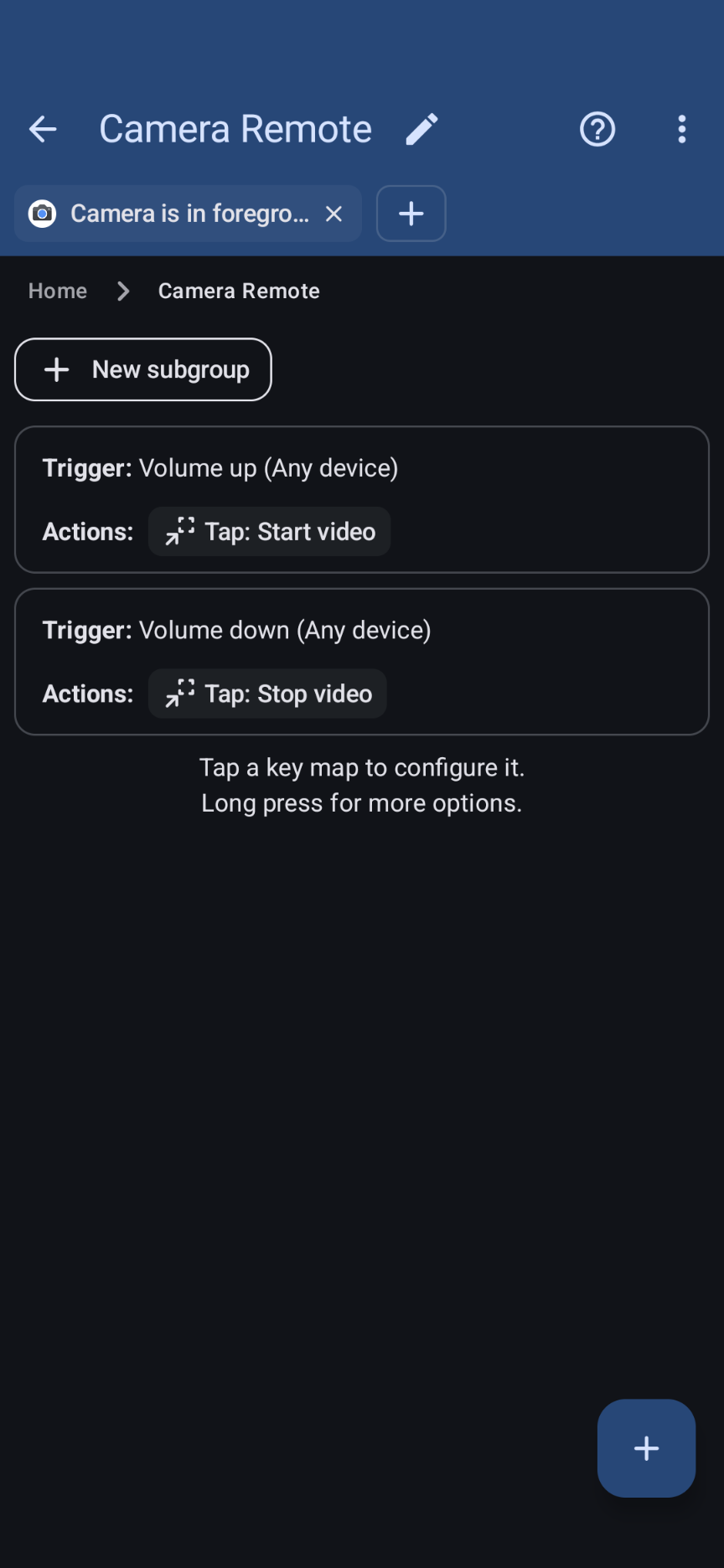
The solution was an app called KeyMapper, available on the Play Store and F-Droid. As the name suggests, it remaps keys. What surprised me was that it can tell the difference between the volume buttons on the phone and on the remote. Another great feature is remapping only for a specified app, Samsung Camera in this case.
But what do you remap the buttons to to only start or stop recording? Well, here comes the best ability of KeyMapper - you can record yourself clicking on any button on your screen, and it will remember which button it was. "Start Recording", in my case. Then, you just bind the remote's key to click on this very button. If there's no "Start Recording" button, as the camera is currently recording, nothing happens. Exactly what my grandpa wanted.
One Last Improvement #
Remote controlling works like a charm, but there's an issue. The screen goes off when it's not recording after a while. And if you set the screen timeout to a really long time (although I'm not sure what the maximum allowed is), the screen is going to drain the battery.
If you are on Samsung, like my grandpa is, there's an app from Samsung for you. It's called Battery Guardian, from the Good Guardians suite, and it has a little side feature that we're going to use:
Screen Curtain is a new feature that allows you to maintain application running status while the screen is turned off. Use Screen Curtain to minimize battery consumption and heat generation.
Install Battery Guardian from the Galaxy Store, or sideload from APKMirror if you are in unsupported country. Enable Screen Curtain. It's just a few clicks, but here's a guide. When you start it from the quick panel button, your screen will go almost dark. Any app running will continue to run underneath, and the remote control will continue to work with our remaps. It also disables the screen timeout.
If you don't have a Samsung phone, you'll have to find an alternative. Just be carefull what you install, since it will for sure require the accessibility permission, which is a dangerous one.
Thanks for reading, I hope I helped you :)